Modernizing your COBOL application by using isCOBOL Compiler code injection
Estimated Reading Time: 3 MinutesThe configuration variable's syntax is:
iscobol.compiler.gui.<control-name>.defaults=...
The controls you can use this variable with are: bar, bitmap, check_box, combo_box, date_entry, entry_field, frame, grid, java_bean, label, list_box, push_button, radio_button, ribbon, scroll_bar, slider, status_bar, tab_control, tree_view, web_browser, window, and tool_bar.
For example, here's a standard screen section description:
    01  s1.
        03 ef1 entry-field
           line 2 col  2 size 10.
        03 ef2 entry-field
           line 2 col 14 size 10.
        03 ef3 entry-field
           line 2 col 26 size 10.
        03 pb1 push-button
           line 5 col 10 size 10
           title "Save" exception-value 1.
When compiled with these settings to add color and style to push-buttons and entry-fields:
iscobol.compiler.gui.push_button.defaults=flat, background-color -14675438
iscobol.compiler.gui.entry_field.defaults=border-color rgb x#dae1e5, \
                                          border-width (0 0 2 0 )
the compiler will treat the source code as if it were written as:
    01  s1.
        03 ef1 entry-field
           border-color rgb x#dae1e5,
           border-width (0 0 2 0)
           line 2 col  2 size 10.
        03 ef2 entry-field
           border-color rgb x#dae1e5,
           border-width (0 0 2 0)
           line 2 col  2 size 10.
        03 ef3 entry-field
           border-color rgb x#dae1e5,
           border-width (0 0 2 0)
           line 2 col  2 size 10.
        03 pb1 push-button
           flat, background-color -14675438
           line 5 col 10 size 10
           title "Save" exception-value 1.
Code injection also affects controls created with single display statement, so that:
    display push-button
            line 5 col 25 size 10
            title  "End" exception-value 27
            handle in h-pb.
becomes:
    display push-button flat, background-color -14675438
            line 5 col 25 size 10
            title  "End" exception-value 27
            handle in h-pb.
NOTE: Code injection works by inserting the text value of the configuration variables into the source code where controls are declared or created.
This means that any syntax errors in the configuration variables will result in compilation errors.
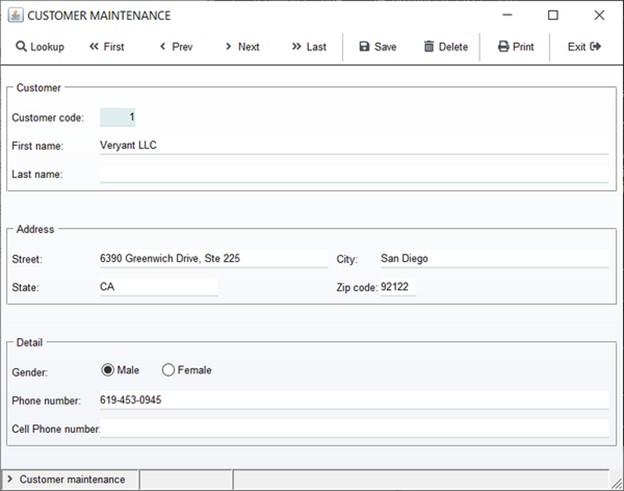
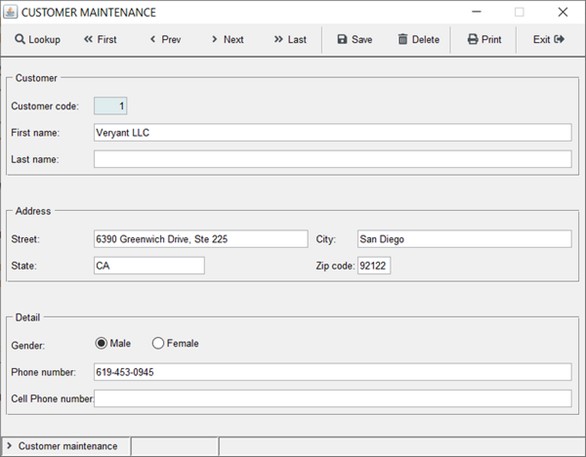
As an example, the following screen is a standard screen with slightly dated looking controls and window:
By compiling with the following compiler configuration:
   # Compiler.regexp to remove the 3D and "ERASE" styles when displaying the window
   iscobol.compiler.regexp="(?i)( 3-D,)" "" \
                           "(?i)( 3-D)" "" \
                           "(?i)( ERASE,)" "" \
                           "(?i)( ERASE)" ""

   #### code injection for controls ####
   # add the gradient color on all windows
    iscobol.compiler.gui.window.defaults= \
       gradient-color-1 rgb x#FFFFFF \
       gradient-color-2 rgb x#F2F5F9  \
       gradient-orientation gradient-northeast-to-southwest

   # add the transparent style to all labels, check-boxes and radio-buttons
   iscobol.compiler.gui.label.defaults= transparent
   iscobol.compiler.gui.check_box.defaults= transparent
   iscobol.compiler.gui.radio_button.defaults= transparent
   iscobol.compiler.gui.frame.defaults= transparent

   # set the white color for all toolbars
   iscobol.compiler.gui.tool_bar.defaults= background-Color rgb x#FFFFFF \
                                           foreground-Color rgb x#000000

   # add the flat style to all push buttons
   iscobol.compiler.gui.push_button.defaults=flat

   # add the underline style to all entry-fields
   iscobol.compiler.gui.entry_field.defaults = border-width (0, 0, 2, 0) \
                                               border-color rgb x#DAE1E5
The screen is transformed to this more modern looking screen.