How to Change the Browser Tab’s Icon When Running You Application in WebClient
The default browser tab’s icon is the Veryant logo. You can change this to your own logo easily with your own icon. Here’s what the default browser tab looks like:

If you want to replace the icon in all applications run by Webclient, you can replace the icon file in WebClient’s war file.
- Open %ISCOBOL%\webclient\webclient-server.war file in a file decompression tool tool like 7zip. Notice the file named “favicon.ico”.
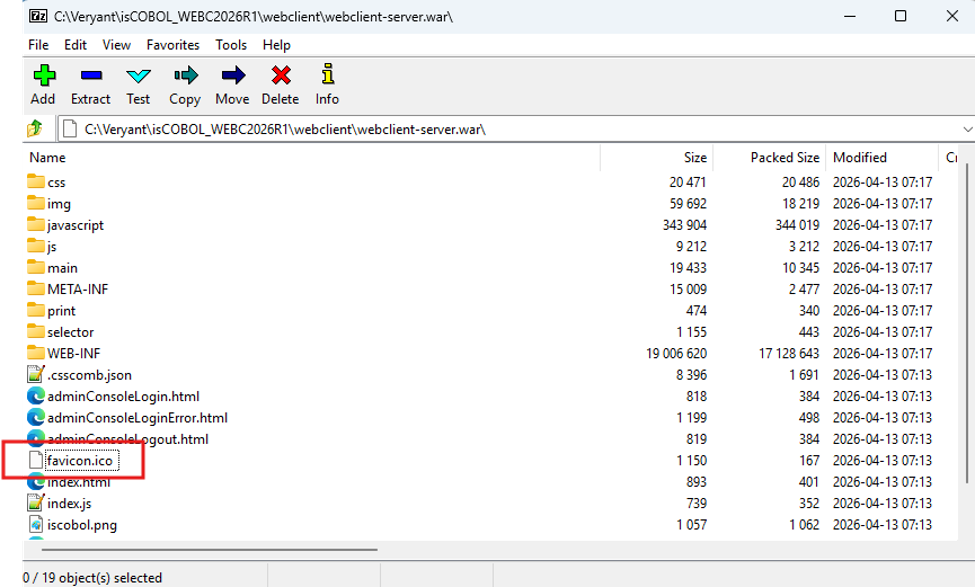
- This is the file you need to replace with your .ico file. Name it the same name: ico.
- Stop and restart the application server and WebClient.
If you need to change the icon for an individual WebClient application, follow these steps.
- Create a web folder by clicking on the “Create Web Folder” button in your Web Configuration
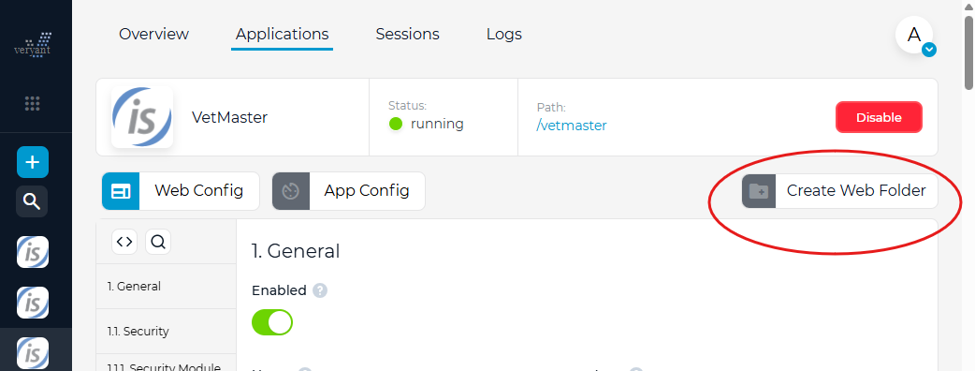
This will create folder with “index.html” and “Index.js” files to be used just for this application.
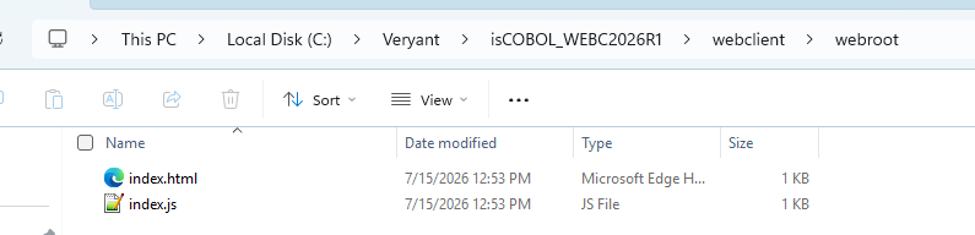
- For multiple applications with different icons, you can rename and move this folder, pointing to its new name and location in the “Web Folder” field of your application.
- Add your icon to the folder.
- Open index.html and replace “favicon.ico” to the name of your icon. Add “?v=2” to the end of the icon name to force the app to restart without having to restart WebClient.
<link rel="icon" href="favicon.ico"/>
becomes
<link rel="icon" href="./v_icon.ico?v=2"/>
Now we have a modified browser tab that looks like this – improving your product branding and giving your users a professional experience.

Article ID: 361
Created: August 3, 2026
Last Updated: August 3, 2026
Author: Support KB Author
Online URL: https://support.veryant.com/phpkb/article.php?id=361