How to create groups of fields in the IDE Screen Painter that share the same screen area but are displayed at different times
Estimated Reading Time: 1 Minutes
1) Right click on an empty area of the painted screen and select the "Group Item Designer" menu option to get the Group Item Designer:

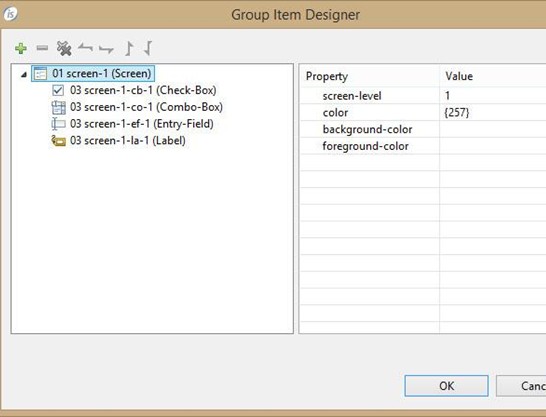
2) Click on the "+" button to create a new group. Do it twice to create 2 groups for this case.

3) Use the down arrow button to move the items down, so they appear below each group you created.
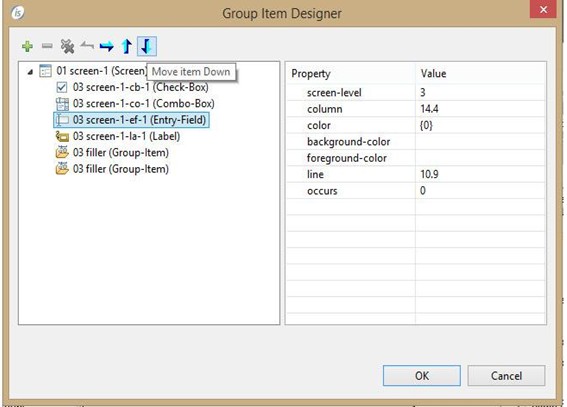
4) Then use the right arrow button on each item to include them on each group

5) Create a visible variable for each group (ef-visible & cb-combo-visible in our case):
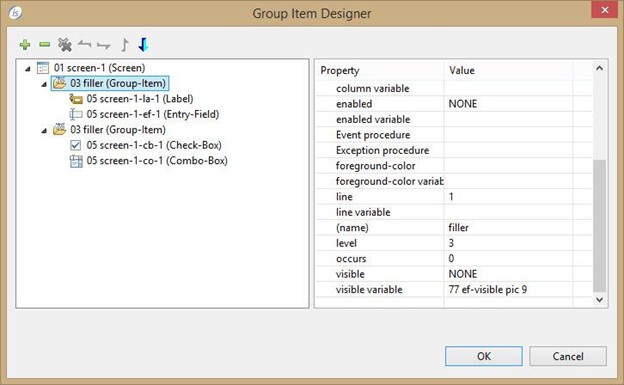
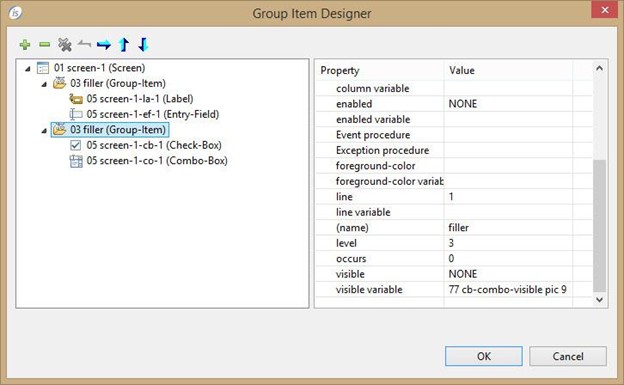
6) In your procedural code, when you need one group to disappear, set its VISIBLE property to 0 and set the VISIBLE property of the other group to 1, then refresh the screen. In the following example a separate paragraph is provided for each case, and your code will execute one or the other as needed.
  Show-entry-field.
      Move 0 to cb-combo-visible
      Move 1 to ef-visible
      Display screen-1.

  Show-cb-and-combo.
      Move 1 to cb-combo-visible
      Move 0 to ef-visible
      Display screen-1.