How to use existing FD/SL copybooks in Screen Programs
Estimated Reading Time: 2 MinutesYou can use the IDE to create data file descriptions and select statements using the Data View. But if you have existing files, you do not need to enter them in the Data View. isCOBOL's IDE can use FD/SL copybooks to generate the appropriate COPY statement in the COBOL source. These are the steps to be followed:
1. In the Structural view expand your project, then expand your program and select 'File section'
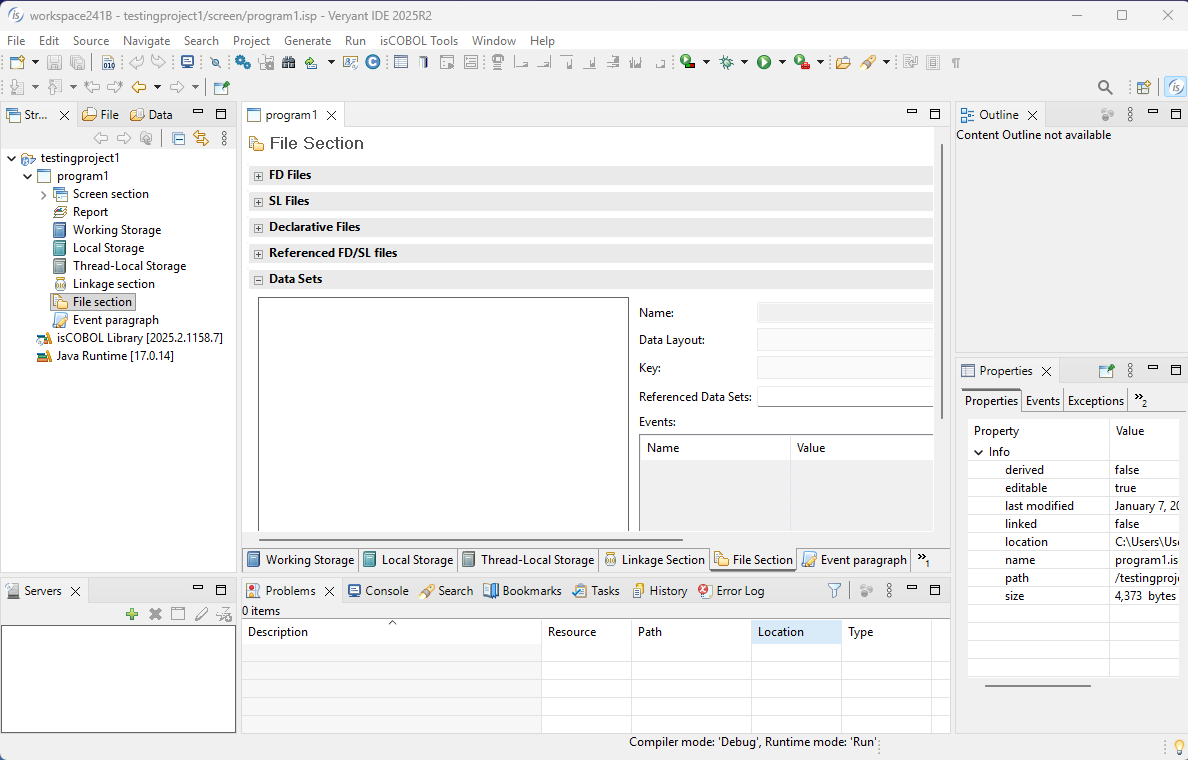
2. Double click in File Section to open the File Section panel; then, expand the 'FD files' and 'SL files' on top of the 'File section' panel
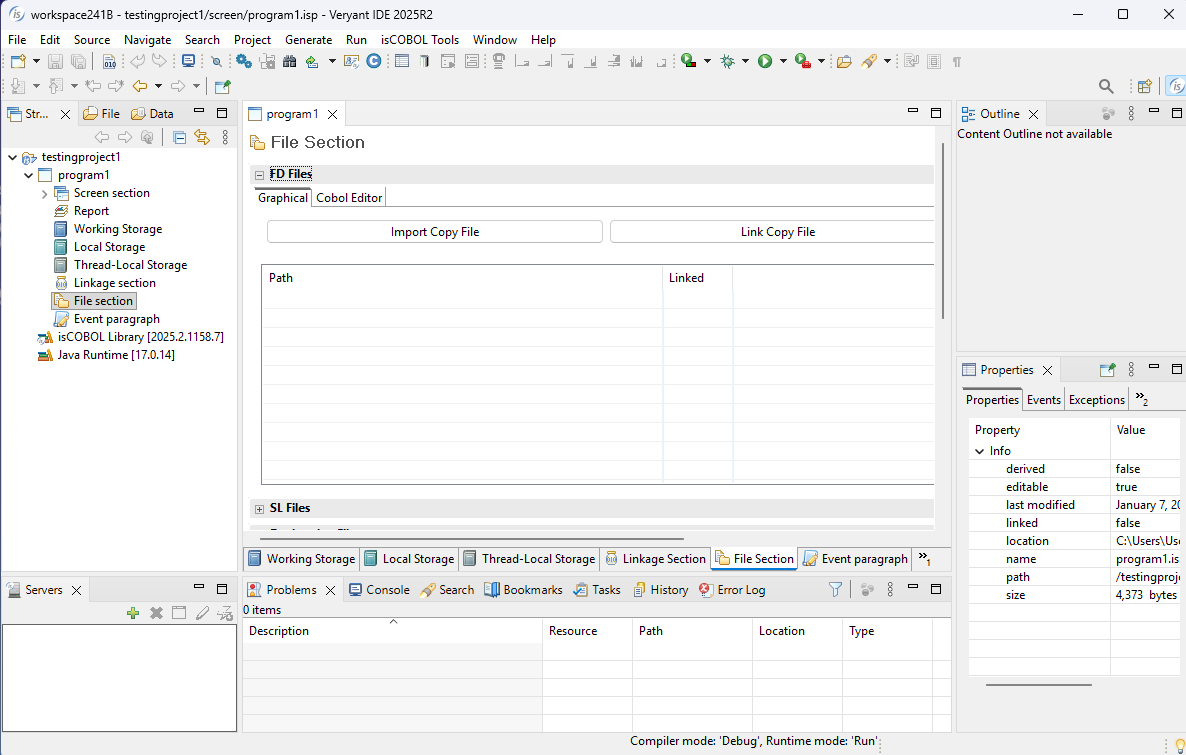
3. Use the 'Link Copy File' button to browse for your FD and SL copybooks. You will be prompted to link to a file in your current project or the filesystem (anywhere else on your computer).
The difference between the above methods is:
- With "Select from filesystem" you can choose the file outside the workspace's folders and the generated COPY statement will contain the absolute path.
- With "Select from project's source path" you can only choose files available (physically or linked) into the workspace folders and the generated COPY statement will contain the relative path.
We recommend the second approach to avoid conflicts created by moving the workspace folder or sharing the project with other developers. You can add files from your filesystem to your project by right clicking on the FDSL folder and linking them.
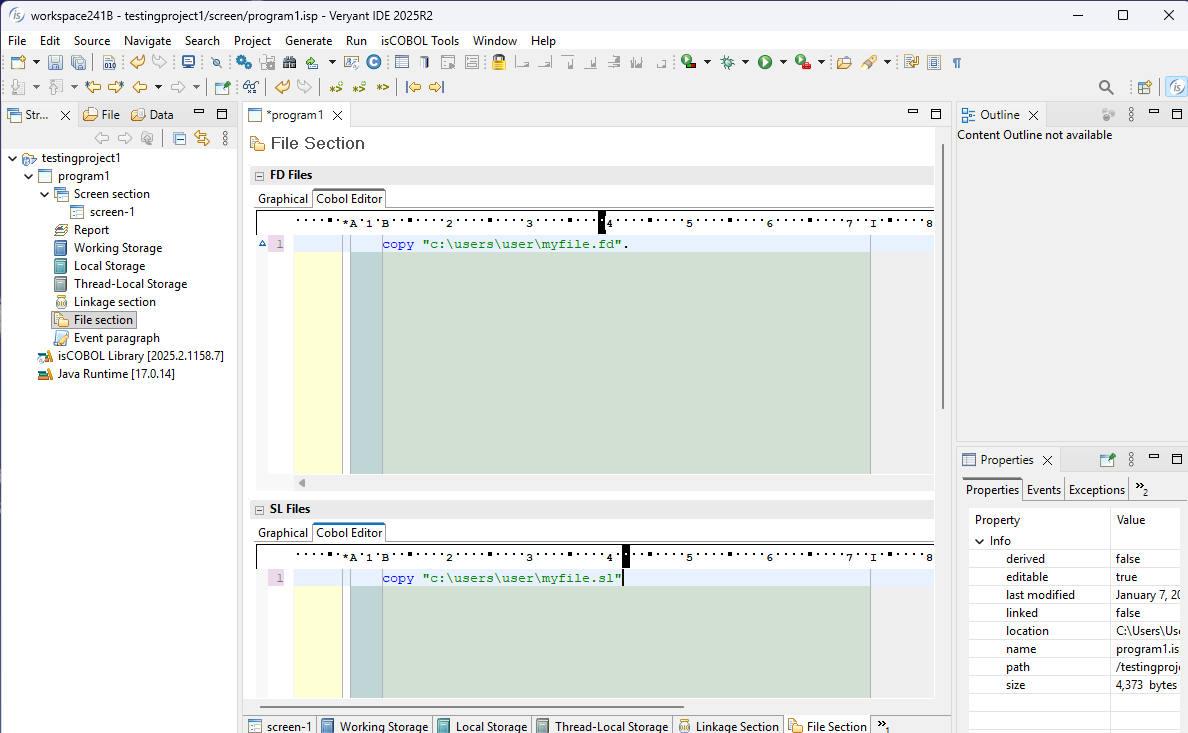
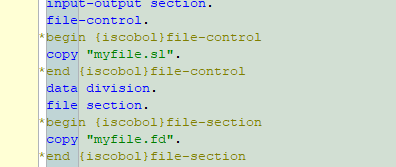
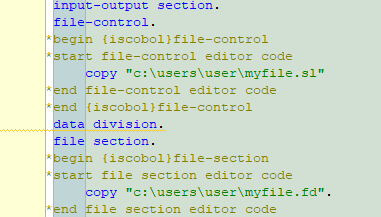
Here's a look at a file's FD and SL statements linked into the screen program:
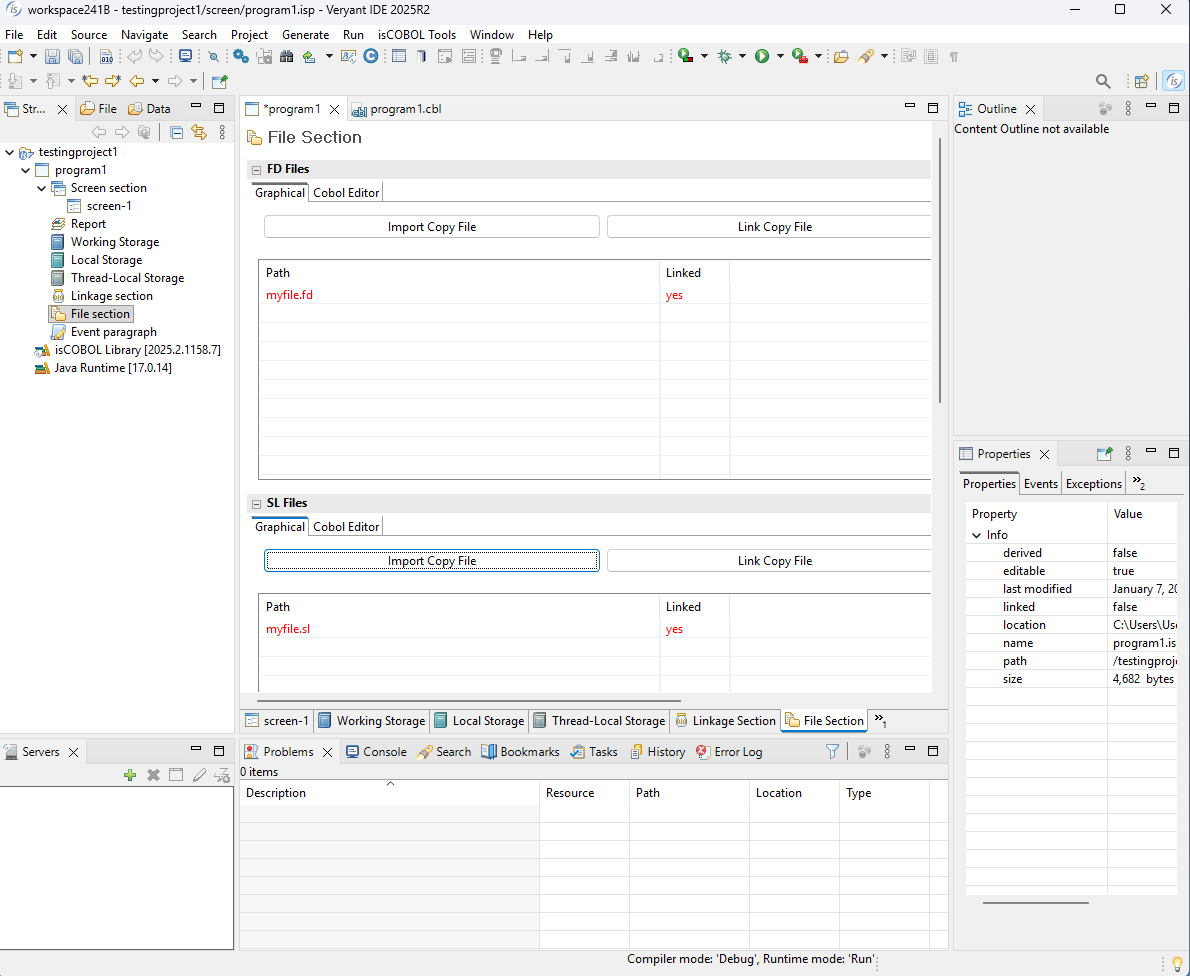
An alternate method of adding in your FD and SL copy files is to switch to the "Cobol Editor" tab and pasting or typing the code to add the 2 files.